Docker CLI: docker run vs exec vs attach, Interactive Shells, and Debugging
run creates, exec borrows, attach forwards your keystrokes to PID 1. Plus exit-code diagnosis and debugging an image with no shell.
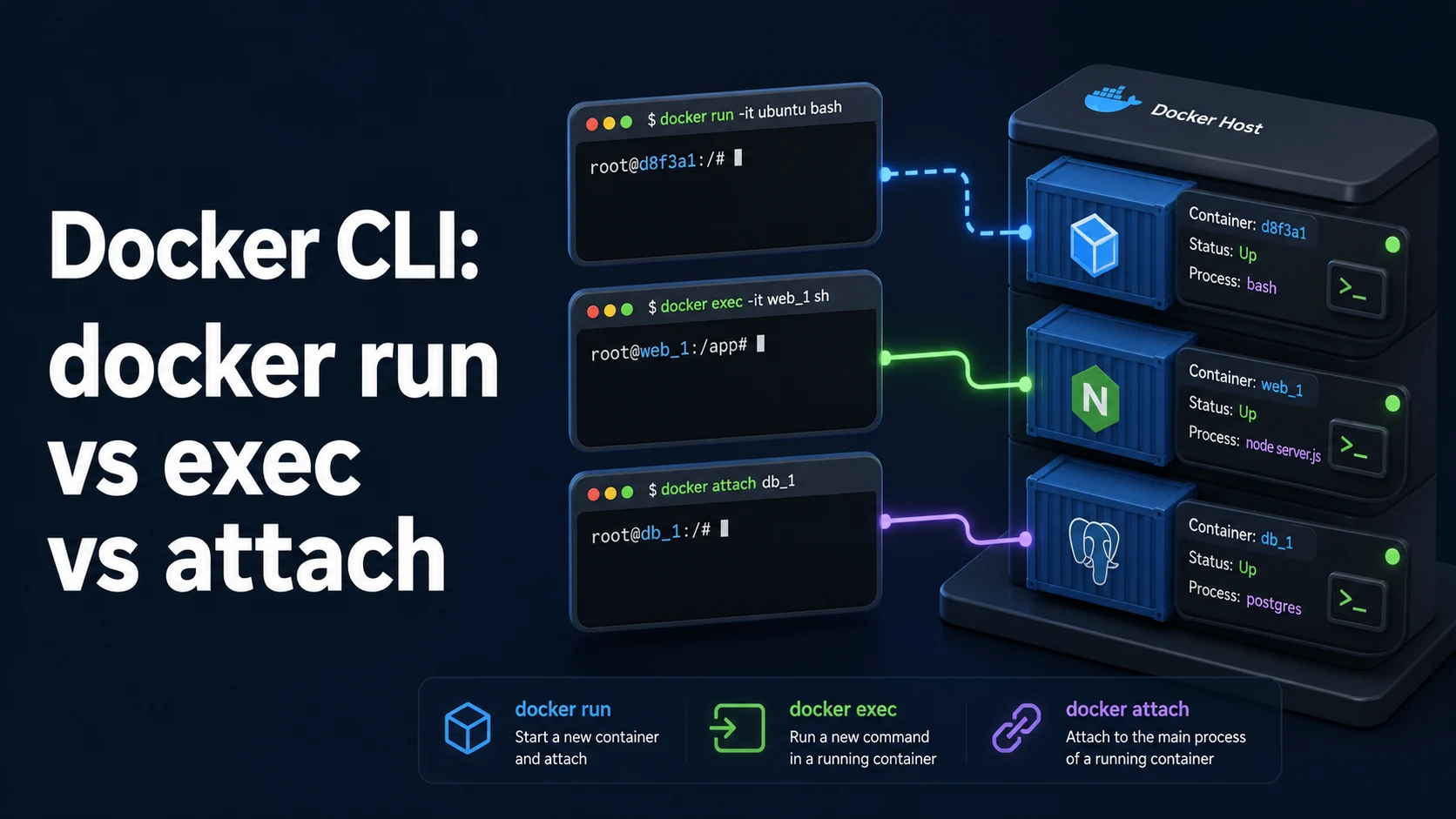
Quick Summary
docker run creates a new container from an image and starts it. docker exec starts an additional process inside an already running container. docker attach connects your terminal to the container's main process (PID 1) and its stdio. Three commands, three different relationships: run is creation, exec is a side door, attach is a window onto the original process.
Almost every operational mistake in this area comes from confusing them. docker run -it image bash on a container that is already running gives you a second container with none of the first one's state. docker attach followed by Ctrl-C sends SIGINT to PID 1, which stops the application. And docker exec needs a shell that exists in the image — distroless images have none, by design.
Basic syntax and query signatures
docker run --rm -it alpine sh                     # new container, interactive, deleted on exit
docker exec -it api sh                            # shell inside the running "api" container
docker exec api env                               # one-off command, no TTY needed
docker attach --sig-proxy=false api               # watch PID 1 stdout, Ctrl-C does not kill it
docker logs -f --tail 100 api # follow logs without attaching# Debug a crashed or non-starting image: override the entrypoint
docker run --rm -it --entrypoint sh myimage
docker run --rm -it --entrypoint sh --user root myimage-i keeps stdin open, -t allocates a TTY. Both are needed for an interactive shell; one-off commands need neither, and -t in CI produces the input device is not a TTY.
Key comparison table
| Command | Creates container | Sees existing state | Signals to PID 1 | Needs a TTY | Works after restart |
|---|---|---|---|---|---|
docker run | Yes | No | n/a | Optional | n/a |
docker exec | No (new process) | Yes | No — separate process | For shells | Only while running |
docker attach | No | Yes | Yes — Ctrl-C hits PID 1 | Yes | Only while running |
docker logs -f | No | Yes | No | No | Yes, reads history |
docker cp | No | Yes | No | No | Yes, on stopped containers |
| Exit code | Meaning | Typical cause |
|---|---|---|
0 | Success | Process finished normally |
1 | Application error | Unhandled exception, failed check |
125 | Docker itself failed | Bad flags, daemon error |
126 | Command not executable | Permission denied on the binary |
127 | Command not found | Wrong CMD/ENTRYPOINT path, missing shell |
137 | SIGKILL (128+9) | OOM kill, or docker stop after the grace period |
143 | SIGTERM (128+15) | Graceful shutdown received |
Practical edge cases and deep dives
1. run creates state; exec borrows it
docker run -it --rm postgres:17 psql            # fails: no server in this new container
docker exec -it db psql -U app                  # works: same container as the server
A fresh docker run has the image's filesystem and nothing else — no volumes from the running instance, no network alias, no initialised data directory. When someone "checks the database" with docker run postgres psql and finds it empty, the data is fine; the command created a second, empty database. The rule: run to start a service, exec to look inside it.
The same applies to build tools. Running a linter with docker run --rm -v "$PWD:/src" image lint is legitimate — that is a deliberate new container with a bind mount. Running it with exec requires the tool to be in the running container's image, which it usually is not.
2. exec needs a shell in the image
docker exec -it distroless-app sh
# OCI runtime exec failed: exec failed: unable to start container process:
# exec: "sh": executable file not found in $PATH: unknown
Distroless and scratch images contain only the application binary, so there is no shell, no ps, no curl. Options, in order of intrusiveness:
docker cp ./busybox distroless-app:/busybox && docker exec -it distroless-app /busybox sh
docker run --rm -it --pid=container:distroless-app --net=container:distroless-app nicolaka/netshoot
docker debug distroless-app          # Docker Desktop: toolbox container sharing namespaces
The --pid=container: and --net=container: flags are the portable version: a toolbox container that shares the target's namespaces, so ps, ss, and tcpdump see the target's processes and sockets. That is the right tool for network problems in a minimal image, where the container itself cannot help.
3. attach sends your keystrokes to PID 1
docker attach api
# Ctrl-C here sends SIGINT to the application — it stops
# Ctrl-P Ctrl-Q detaches without killing it
attach is for observing an interactive process you started with -it, or for recovering a process that reads stdin. For a server, it is a loaded gun: Ctrl-C is SIGINT delivered to PID 1, and the detach keystroke sequence (Ctrl-P, Ctrl-Q) is easy to mistype. docker attach --sig-proxy=false makes your terminal keys local instead of forwarded, which turns it into a read-only view; docker logs -f does the same job without the risk and works even when the process has no TTY.
Note that docker logs shows what the process writes to stdout/stderr, which for a container started with -t includes carriage returns and ANSI codes. Starting a server with -t to "see the output" is the reason logs look like a terminal recording.
4. Diagnosing an exit code
docker inspect api --format '{{.State.ExitCode}} {{.State.OOMKilled}} {{.State.Error}}'
# 137 true      ← OOM kill, not a crash
137 with OOMKilled: true means the kernel killed the process for exceeding the container memory limit — not that the application crashed. Raise the limit (--memory=1g) or fix the leak; adding retries just repeats the death. 137 with OOMKilled: false usually means docker stop ran out its 10-second grace period, which points back at signal handling in the CMD.
143 is a SIGTERM that was handled (or not) — a clean shutdown. 1 is the application's own failure; check docker logs --tail 50 for the stack trace. 127 means the entrypoint path is wrong, often because the binary was built for another architecture or the path is relative to a WORKDIR that changed between stages.
5. Resources, processes, and the host's view
docker stats --no-stream
docker top api
docker exec api cat /proc/1/cmdline | tr '\0' ' '
docker exec api ss -tlnp
docker top shows processes as the host sees them, which is what you want when a container "has 40 processes" — it is usually one process with 40 threads, and docker top distinguishes them. Inside the container, ps may not exist and PIDs are namespaced, so /proc/1/cmdline is a dependency-free way to see what PID 1 actually is — useful when the image's ENTRYPOINT is a script wrapping the real binary.
For a stuck container, docker exec cannot help if PID 1 is blocked but the runtime still answers; docker pause/docker unpause freezes and resumes every process, and docker kill -s SIGQUIT asks a Go process for a stack dump. Those signals go to PID 1, so verify what PID 1 is first.
Common mistakes and runtime errors
| Error or symptom | Cause | Fix |
|---|---|---|
the input device is not a TTY | -t in a non-interactive runner | Drop -t, keep -i if stdin is needed |
exec: "bash": executable file not found in $PATH | No bash in the image (Alpine uses sh) | Use sh, or the debug toolbox |
container … is not running on exec | Container exited or never started | docker logs, docker inspect, debug with run --entrypoint |
No such container | Wrong name, or it was removed with --rm | docker ps -a |
Ctrl-C stopped a production container | attach forwards signals to PID 1 | --sig-proxy=false, or use docker logs -f |
Exit code 137 | OOM kill or grace period expiry | Check OOMKilled; raise memory or fix signals |
Exit code 127 | Binary path wrong | Verify ENTRYPOINT and the final stage's filesystem |
| Changes inside a container disappear | Wrote to the container layer instead of a volume | Mount a volume for state that must persist |
docker exec works but the app is broken | Exec runs as the image's default user, not the app's service context | Check whoami, env, and cwd |
permission denied on exec into a shell | Image USER is non-root | --user root deliberately, or rebuild |
The operational habit that prevents the worst of these: for anything running in production, read logs with docker logs -f and make changes only through exec into a shell you close without side effects. attach is for the container you started five seconds ago in your own terminal, and even there logs is usually what you actually wanted.
Try matching browser tools
All toolsSmall utilities that fit Docker work — they run entirely in this browser tab, so nothing you paste leaves your device.
Related Docker guides
All Docker guidesDocker Inspect: Go Templates, Format Flags, and JSON Filtering
The fields worth knowing, the array-versus-object trap, and why <no value> silently passes your monitoring check instead of failing it.
Docker Restart Policies: no, on-failure, always, and unless-stopped
What each policy really restarts, why on-failure ignores a clean exit, how backoff hides crash loops, and why health checks never trigger a restart.
Docker Compose Profiles: Multi-Environment Configs and Overrides
Profiles select which services exist; override files change how they run. How the two fit together, and why ports concatenate instead of replacing.
Docker COPY vs ADD: Build Context, .dockerignore, and Cache Busting
ADD adds tar extraction and URLs nobody wants; COPY is the predictable choice. How the build context is packed, and how copy order decides rebuild time.
More in Docker
All Docker guidesThe guides filed next to this one in Docker, in library order.